
In 2018 I only made one blog post for Caught in Pixels. I did write a handful for DigitalPhotographySchool.com though. But 2018 was in many ways a strange year. Far too many things happened in my life and very little time was available for writing blog posts.
It is an ambition of mine, is that 2019 will be different. My goal is to write more blog posts for www.caughtinpixels.com.
The first topic I thought I would cover is Color Harmony. It is something, that I have spent some time investigating and understanding over the past couple of years and have become increasingly fascinated by it. It is something that you can use intentionally and it can make quite dramatic changes to the perception of a photo.
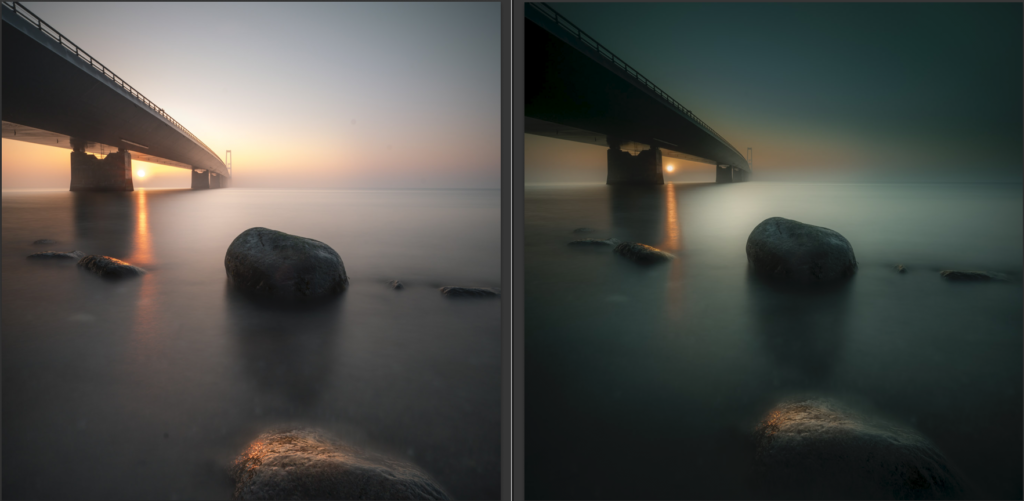
Color theory and color harmony were formalized by painters way back long before the invention of any camera let alone cameras that could take colored photos. Nevertheless, it is still highly relevant and also to photographers.
When you have begun to understand color harmonies, you will see them anywhere you look. You will find them in commercial photos, old and new paintings, movies – literally everywhere.
When you photograph cityscapes and landscapes like I mostly do, you can sometimes find natural color harmonies and photograph them, but more often than not you can’t control the colors of the environment.
You can make some choices on what to include and what not include, but the general mix of colors you can’t change at the time of photographing. Sometimes, you can change the time which you photograph, like nighttime, daytime, blue hour, golden hour, autumn, summer, spring, and winter, but even that is not always possible and you get what you get.
Very often you end up with photos that are not in perfect color harmony and you will have to create that in the post-process. That is what this blog post is about.
Colors and moods
Colors can change the mood of an image. Colors like yellow, orange and red are considered warm because they give a warm feeling. Blue and cyan, on the other hand, are cold colors. You can intentionally use warm or cold colors to make your image convey the mood you want it to.
A good and simple way to change the mood is to simply to shift the white balance either towards the warmer or colder temperatures. This can often also push the image towards a color harmony, as you will see later.
What is a color harmony?
Color Harmonies are colors that look good together. There are many different systems to create
The Adobe color wheel shows how the Red, Green and Blue (RGB) colors can be mixed to any color. On the opposite side of the wheel you can see the complementary color. The complementary colors to the primary colors are:
Blue has Orange as complementary color.
Red has Green as complementary color.
Yellow has Purple as complementary color.
The purpose of this article is not to explain Color Theory in details, but rather to show how change the colors of a photo to have a color harmony. If you want to get a deeper explanation of Color Theory and Color Harmonies, I find Blender Guru’s video very explanatory.
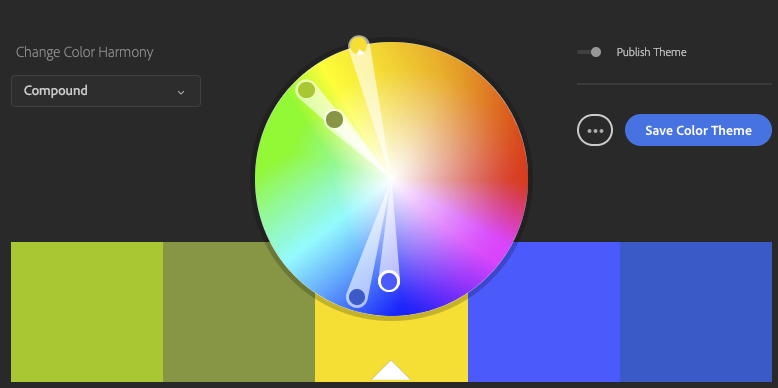
In Adobe’s color tool you can put together 5 colors based on a Color Harmony Model and those colors will be a good match. If you pick Triad as shown below you get three hues with an

By fiddling around you can find various color harmonies that you like and try to use them in your photos. It also holds a huge library of Color Harmonies, which you can if you like. Personally I don’t use them.
Color harmony is a bit like a chord in music. You can make some that are more harmonious than others, but somehow, they always fit together.
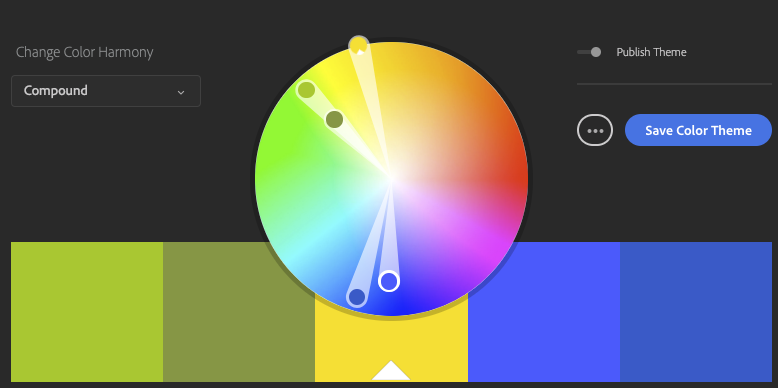
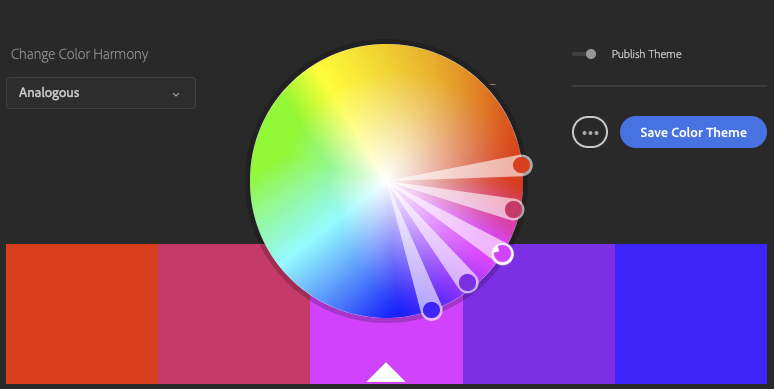
What you find out after having used color harmonies consciously for a little while, is that as soon as you get a color harmony, something incredibly amazing happens to your photo. It’s like it reaches another level and gets pleasing and calm. It is not without a reason it is called Color Harmony.
In some cases, it can be the difference between ‘just a photo’ and a pretty cool photo. Another er weird thing is that the colors do not even have to match reality … not at all!
Have a look at this photo from in a forest in Denmark. This mist will never look that color, yet, because the color of the mist is in harmony with the leaves and it works out just great.

How to Create a Color Harmony?
The trick is to twist the colors into a color harmony. This can be done in many different ways and it is called color grading.
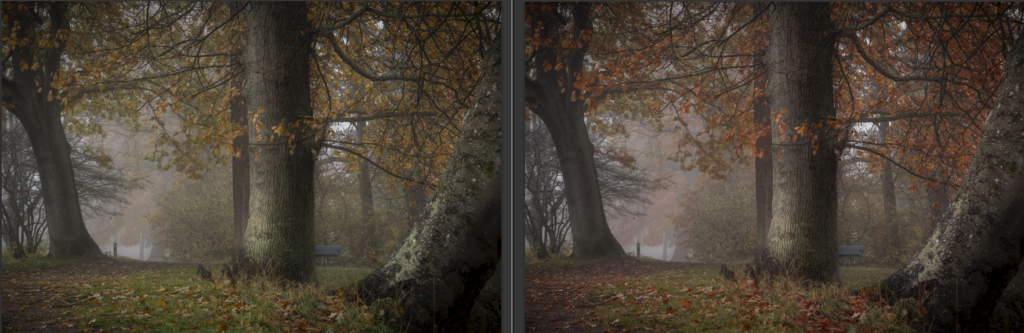
I will show you a couple of easy ways available in Lightroom to color grade your images. This is the before and the after:
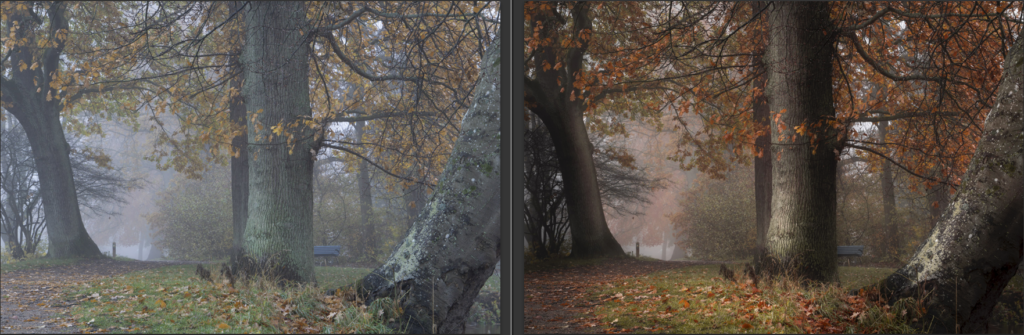
My goal with this image was to get a dark and warm ‘feel-good’ forest image. I did some simple basic image editing before I began working with the colors.
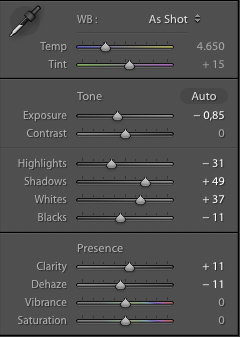
White Balance
Normally you would probably not see White Balance as a color grading technique, but it does change the colors of a photo
The colors straight of the camera are on the cold side, but by shifting the White Balance towards the warmer segment it gets closer to what I want.
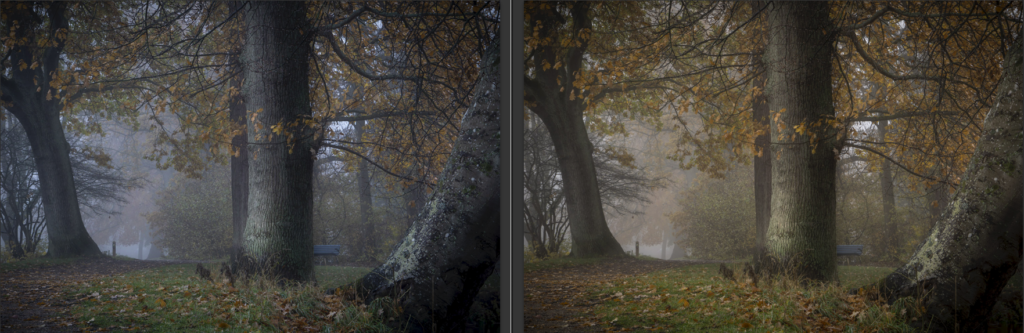
I suggest that you begin by adjusting the White
The White Balance has been warmed slightly, to push the colors more into the Yellow and Orange color range, in which I want the image to end up in.
Color Adjustments using HSL
There are so many different ways to tune your color harmony, one of the best and simplest yet also most effective ways is use the Hue, Saturation, and Luminosity (HSL) panel in Lightroom.
The HSL panel, not surprisingly from the name, allows you to change the hue and saturation (and luminosity) of individual colors and this way you can nudge them into a color harmony.
In the example below I have used exactly the same basic image editing on both images (highlights, shadows and contrast), except for White Balance and HSL settings.
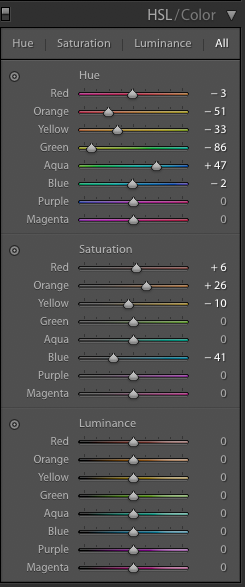
After having adjusted the White Balance you go to the HSL / Color panel in Lightroom and begin to push the Hue sliders to the left and right accordingly to what you want to achieve. Below I have pushed the colors towards Orange and Yellow.
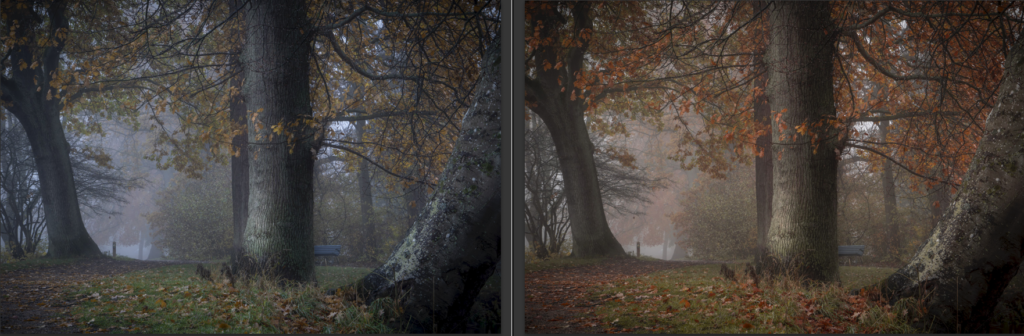
Then you adjust the saturation to balance the saturation or take out a color of the equation. I remove some of the Blue because I found it too dominant.
The image on the left is not bad, but the one on the right has a better balance – a better harmony. It not only because it is warmer it also has a subtle, yet important, color balance.
These are the HSL settings I used:
The White Balance is a part of the equation above, but I can take it out of the equation by making the same warmer White Balance settings on both images. Now you see the difference the HSL settings do.
Essentially there is no right and wrong, but if you want to achieve a perfect color harmony, you can get a lot out of the HSL panel, by tuning the individual colors.
Some images will need more bending than what the HSL will allow, and then you will have to turn to other methods, like local changes using brushes and gradients or even taking the image into Photoshop.
Split toning to add color harmony
You may have heard of split toning. It is a more creative way to work with your colors and it can be very dramatic, but it is a tool you should use with care.
Split Toning is a process where you add one color to the highlights and add another color to the shadows. If you do it in a subtle way, it will hardly be noticeable, but it can make a difference. If you do it more aggressively it will make a strong impact on your image, for better or worse.
You can create Split Toning in many different was. In Lightroom, it is very easy from the Split Toning panel.
In the first example, I have first turned it into black and white photo and then I have colored it using the Split Toning. I have added
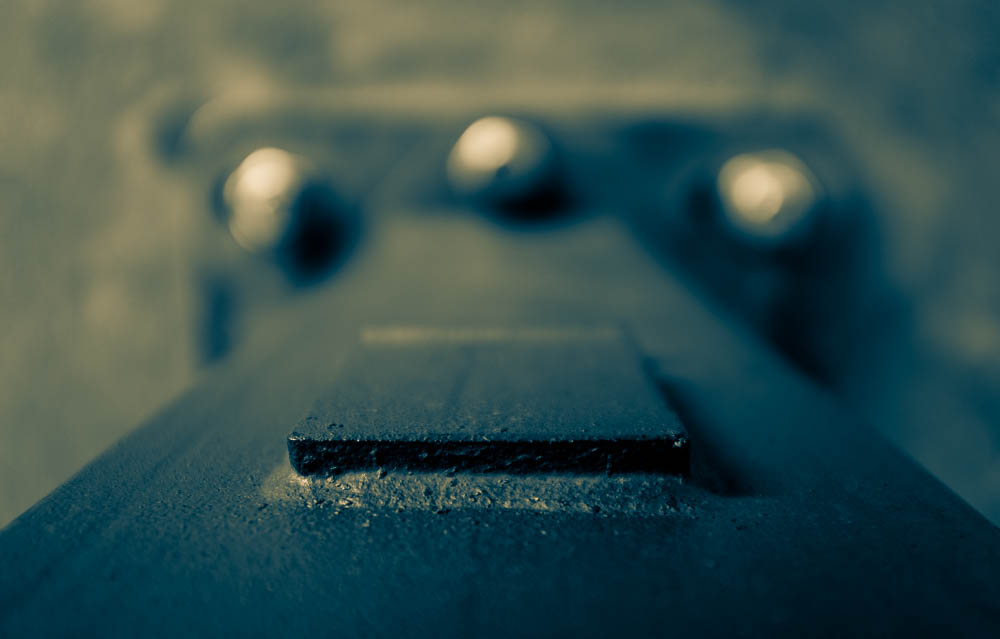
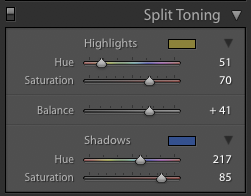
And these are the settings.
The colors you add, might not be natural even if they are very pleasing to the eye. This is a creative decision for you to make.
Here is another example. Same principle – first black and white, and then split toning it.
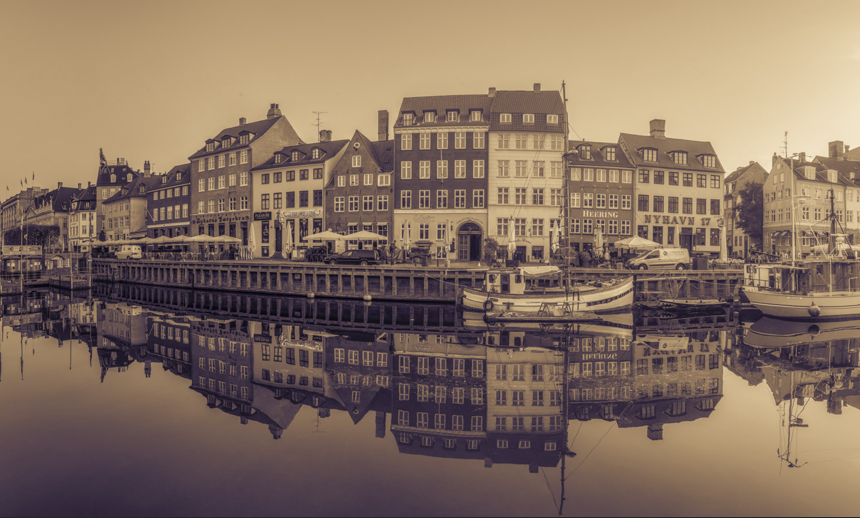
While split toning is an incredibly powerful tool and can be used to create fantastic creative colored photos it is not always enough to create color harmony.
My personal preference is to use Split Toning later in the process to see if it can add just that spice, that makes the difference.
I have a strong belief about image editing: you cannot do everything in one big step. The is no silver bullet, no one-button image processing. It is the many small steps, that may be tiny, that adds up to the big change.
In the example below, the same split toning is added to the colored version of the photo. It changes the photo into a warmer photo.
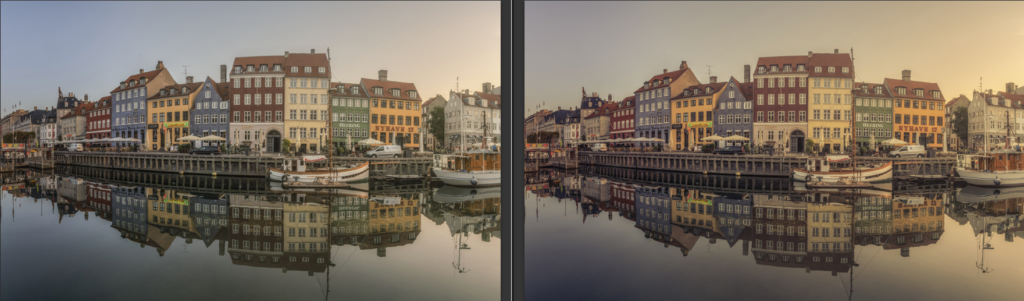
And if you look at Color Harmony, it is the one showed earlier.
–Jacob
]]>
Ryd Junk Yard in Sweden.
The Orton Effect is named after photographer Michael Orton, who invented the method back in the 1980’s – that’s in the film era, but you can apply it to digital photos too. It’s like digital magic. And digitally you can even control it much better and easier than you could in the old film days.
The Orton effect applies a magical soft and dreamy look to your photos, you could call it Glow. It has a softness to it, and yet it remains a sharp photo, if zoomed in.
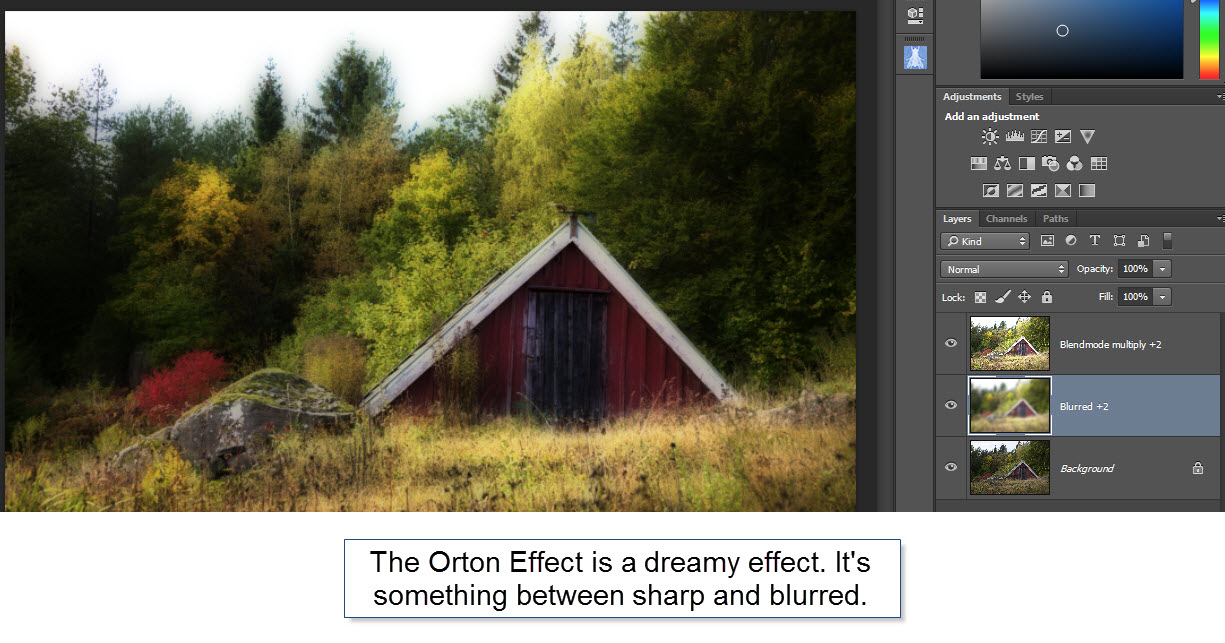
The junk yard photo above, has Orton Effect applied in the trees and the leaves, and the tree below also has Orton Effect (click to see larger version). And as you can see, it is both sharpness and unsharpness at the same time. That is what gives the magic dreamy look.

It really can be that piece of digital magic, you add to a photo, that makes it really unique and special, but you must use it with care. I fairly often use it (or one of it’s sisters – which I describe later). I use it in perhaps 20% of my photos, but I only use it selectively and sometimes even only in very subtle ways. If you compared to a version without, you would be able to see the difference, but otherwise you wouldn’t notice it, because I use it with care.
This is the final version of the tree from Wanaka in New Zealand, and it has one of the strongest uses of the Orton Effect I have ever used:

How to make the Orton Effect step by step
There are some requirements for making the Orton Effect, and these are:
- You need to have Photoshop (any version) or Gimp.
- You also need an over exposed photo. But don’t worry you can make one artificially.
The Orton effect works best on overexposed photos. If you do not have an over exposed photo, you can increase exposure artificially both in Photoshop and in Lightroom. I shoot HDR photos most of the time, which gives me over exposed photos that I can use for the Orton Effect. Later in this tutorial I will show how to make artificial overexposed photos, but also a couple of alternatives to the Orton Effect.
Let’s make some Orton Effect.
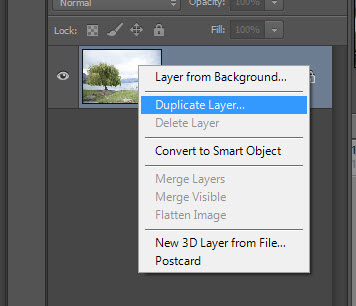
Step 1: First open your overexposed photo in Photoshop or Gimp. Duplicate the layer twice, so that you have three layers with the same image.
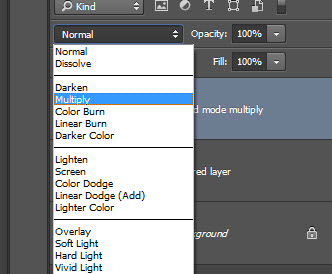
Step 2: On the top layer you have to change the Blend Mode to “Multiply”.
Step 3: The second layer must be out of focus, that is you have to blur it. You use Gaussian Blur to do that.
 Step 5: Try moving the slider between different pixel levels. As you can see in the preview, the Orton Effect changes, as you change the blur levels. It changes quite a lot.
There really are no rights or wrongs, just different effects, and you pick one that you like.
 Step 7: Don’t always use the same blur level, experiment for different effects, before picking one.
 Step 8: Merge the two layers forming the Orton Effect into one layer, that makes it easier to work with.
You can merge the two layers by selecting them and pressing CTRL + E or selecting it from the context menu.
 Step 9: Using the effect globally is generally not a good thing and by merging the two layers, you can add a layer mask, and the mask in what you like.
Create a black layer mask to hide the layer. This allows you to paint in what level of “Orton Effect” you want to apply in your photo, and more important, where to apply it.
You can add a Layer Mask by pressing the button, and then invert the layer mask by pressing CTRL+I, while having the mask in focus. Or you press ALT (or CMD on a Mac) and press the button, and you will get a black mask.
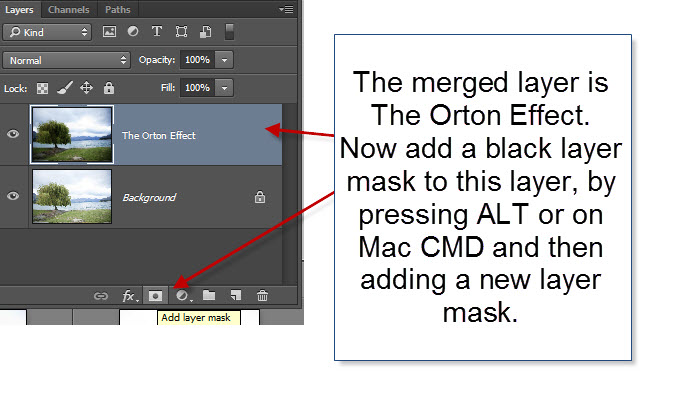
Step 10: Using the brush tool (read about layer blending here, if it’s new to you) you can paint in what level of Orton Effect you want in your photo. As you can see I only use it selectively.

The Sisters of the Orton Effect
You might already be thinking ‘What happens if I use some of the other blend modes?’ Well, most gives something that is quite unusable and psychedelic, but ‘Soft light’ and ‘Overlay’ gives something that you can use. The method is otherwise exactly the same, and the effect is somewhat similar, in particular for the ‘Soft light’.
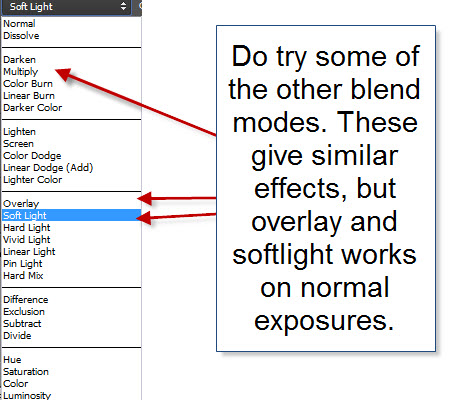
The advantage of using the Soft light and Overlay is that you can easier stick to your ordinary exposures.
As you can see, you still end up with a a nice and glowing images, that has a dreamy touch. This is Soft Light:
 And this is Overlay:

As it happens I often end up using either blend mode ‘Soft light’ or ‘Overlay’, rather than ‘Multiply’ because it works better with normal exposures, and therefore is easier to incorporate in my existing processing workflow. Or maybe I am just lazy.
Changing the Exposure to Overexposed
It’s really no big deal to make an over-exposed photo artificially. In Lightroom there is a slider for it, and you can make a virtual copy of the normal exposure, increase the exposure of it and export it along with the normal exposure.

And in Photoshop you can add an Adjustment Layer for exposure, and do the exact same thing. And if you duplicate your layer, and merge the Adjustment layer to the duplicate, you will have both the normal exposure and the overexposed as two layers.
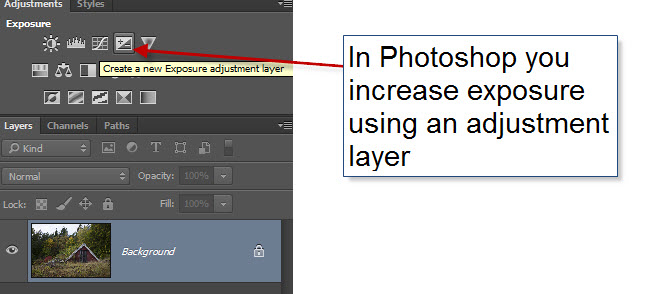 Adjust the exposure to overexposed by 2 stops.
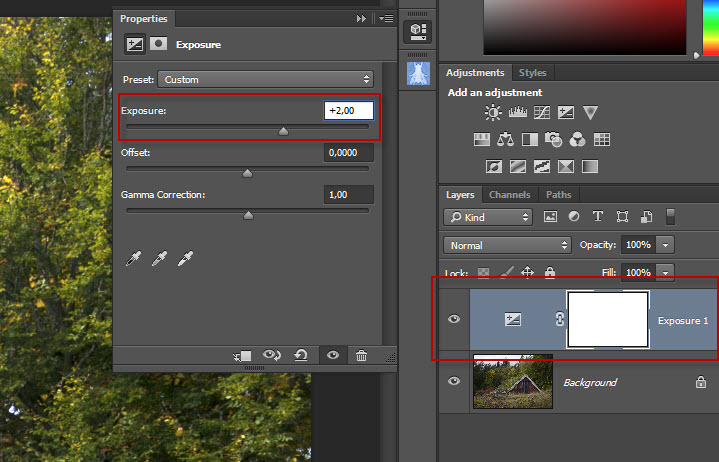
And then you can do the Orton Effect easily:
 Enjoy using the Orton Effect or one of it’s sisters, but remember, to use it with care. Too much of everything is not great.